E-Learning Platform — User Manual
What is the Mazmazika E-Learning platform?
Mazmazika is a music-native learning platform — more than a course website. It brings together structured courses (video, audio, PDF, sheet music, and text lessons), assessments (quizzes, assignments, exams), ear-training and practice tools, progress tracking with badges and certificates, and full organization management for music schools and academies.
It serves both individual teachers selling their own courses and institutions running structured music programs. This guide explains, in plain language, what each kind of user can do.
Finding the platform & choosing your role
Open the e-learning area from the top menu under Others → New Courses (you'll need to be logged in). The first time you enter, you choose what kind of user you are:
| Role | Choose this if you… |
|---|---|
| Student | Want to learn music — take courses, practise, submit work, earn certificates. |
| Teacher | Want to create and sell courses, manage students, and grade their work. |
| Organization | Run a music school or academy and manage many teachers and students. |
Your role only decides what your main e-learning dashboard looks like — it doesn't lock you out of the other Mazmazika tools (ear training, piano, chord analyzer, vocal remover, and so on). If your school or a teacher invites you, you'll receive an email invitation link; opening it adds you to that organization with the right role automatically.
For Students
This section is for people who want to learn music.
Your dashboard — "My Learning"
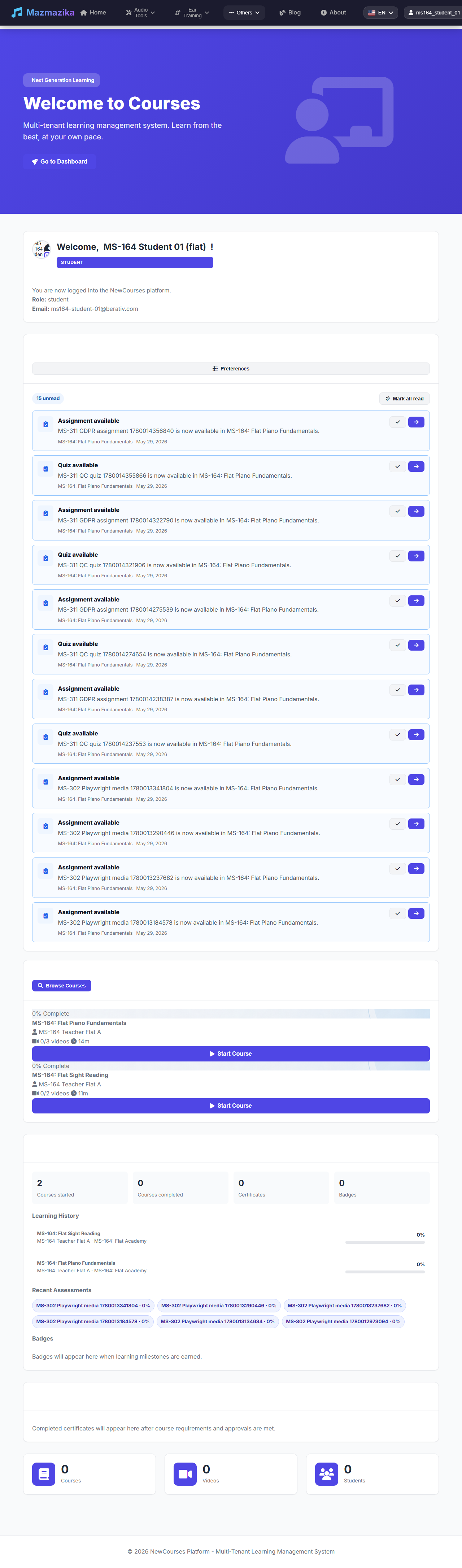
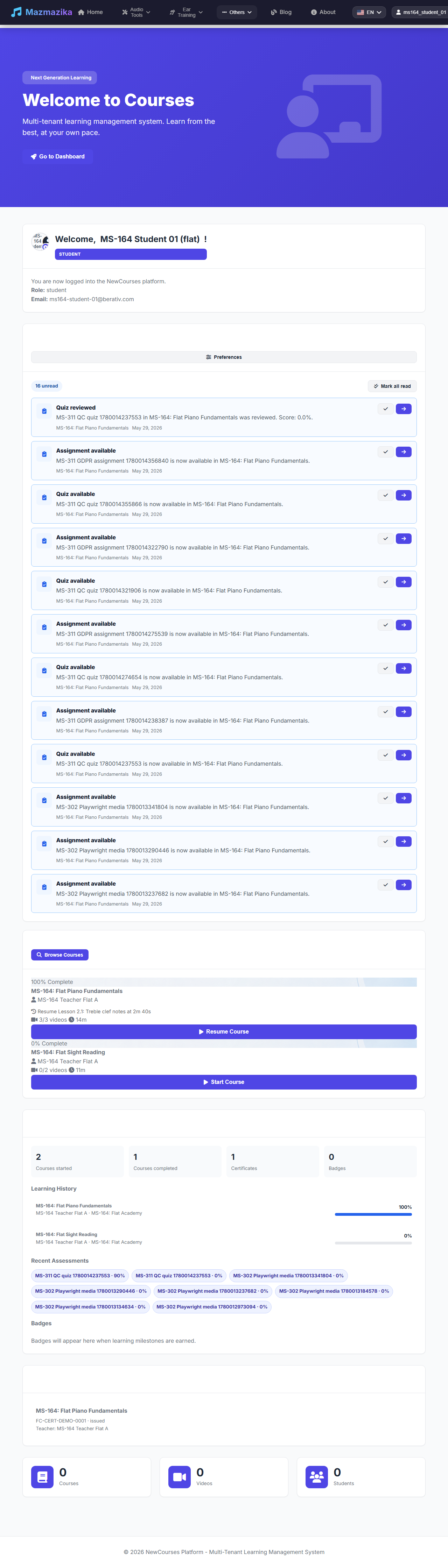
When you log in as a student you land on your learning home, which shows your enrolled courses with progress, a Browse Courses button, your latest announcements and notifications (new assignments, quizzes, etc.), your learning history and recent assessments, and your certificates and badges.
Finding & enrolling in courses
Click Browse Courses to explore the catalogue. You can search and filter, read course descriptions, see the teacher, and preview what's included. There are three ways to start a course:
- Free courses — enrol instantly.
- Paid courses — pay securely with Stripe or PayPal; the course unlocks once payment is confirmed.
- Assigned courses — if you belong to a school, courses can be assigned to you automatically, with nothing to buy.
Learning inside a course
A course is organised into sections (chapters) containing lessons — video, audio, PDF, or text — plus downloadable materials like sheet music, exercises, MIDI files, and backing tracks. The platform remembers where you stopped, marks finished lessons as Completed, and lets you pick up from your last spot.
Quizzes, assignments & ear-training tasks
- Quizzes — short, auto-graded tests (multiple choice, true/false, audio recognition, fill-in-the-blank).
- Assignments — work you submit for your teacher to review (an audio or video recording, a PDF, notation, or a MIDI file). Your teacher grades it, gives feedback, and may ask for a resubmission.
- Ear-training tasks — interval, chord, or scale exercises a teacher can set with a target score, completed in the Ear Training tool.
Questions & announcements
Each course has a Q&A area where you can ask the teacher a question and read answers other students received. Teachers can also send announcements to everyone enrolled.
Practice tools
As a student you also get Mazmazika's music tools: Ear Training, the Virtual Piano, the Metronome, the Chord Analyzer, the Vocal Remover, and notation tools. Practice activity counts toward your overall learning profile.
Progress, badges & certificates
Your dashboard tracks lessons completed, quiz scores and grades, badges, and certificates. When you finish a course (and pass any required assessments), you receive a digital certificate with your name, the course and teacher, the date, and a unique verification ID — downloadable as a PDF and shareable via a verification link.
As you work through a course, the dashboard fills in: your Learning History shows a per-course completion bar, and the counters at the top track courses started, courses completed, certificates, and badges.
For Teachers
This section is for teachers who create courses, teach students, and grow their teaching.
The Teacher Workspace
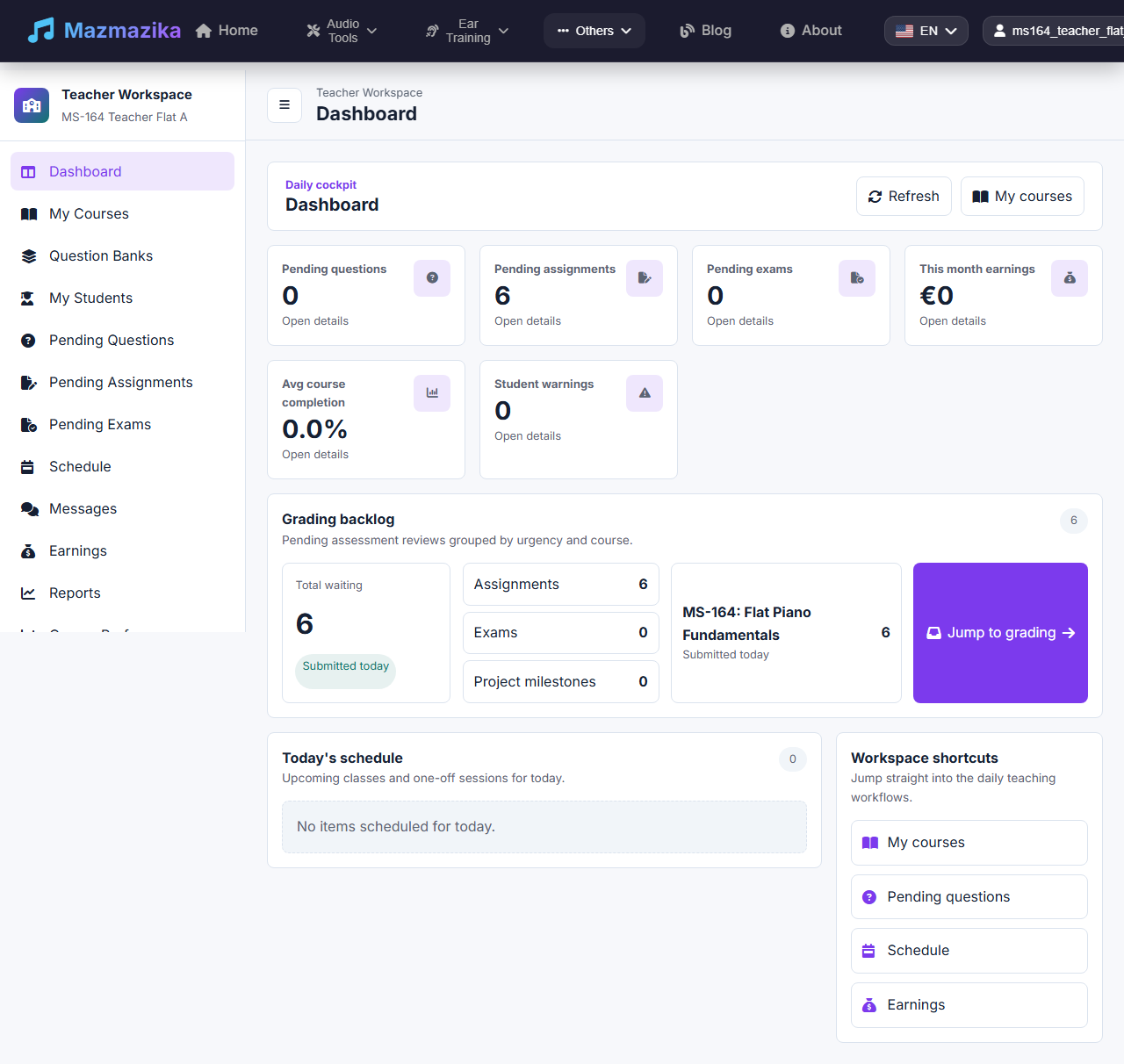
The teacher area is a workspace with a left-hand menu: Dashboard, My Courses, Question Banks, My Students, Pending Questions, Pending Assignments, Pending Exams, Schedule, Messages, Earnings, Reports, and Course Performance. These are the places you manage everything you teach.
Your daily dashboard
The workspace opens on your daily dashboard (cockpit) — a single view of what needs your attention today. It shows quick-glance cards for Pending questions, Pending assignments, Pending exams, This month's earnings, Average course completion, and Student warnings; a Grading backlog panel that groups work waiting to be marked (with a Jump to grading shortcut); Today's schedule; and shortcuts to your most-used pages. Every card links straight to the matching section, so you can clear your to-do list in a few clicks.
My Courses
The My Courses page lists every course you own or that an organization assigned to you, with badges for status (Draft / Review / Published / Archived) and delivery channel, plus each course's student count and average completion. Filter by status, organization, or title; open Edit course to jump into the builder; or Duplicate a course as a starting point. Use Create course to start a new one.
Creating a course
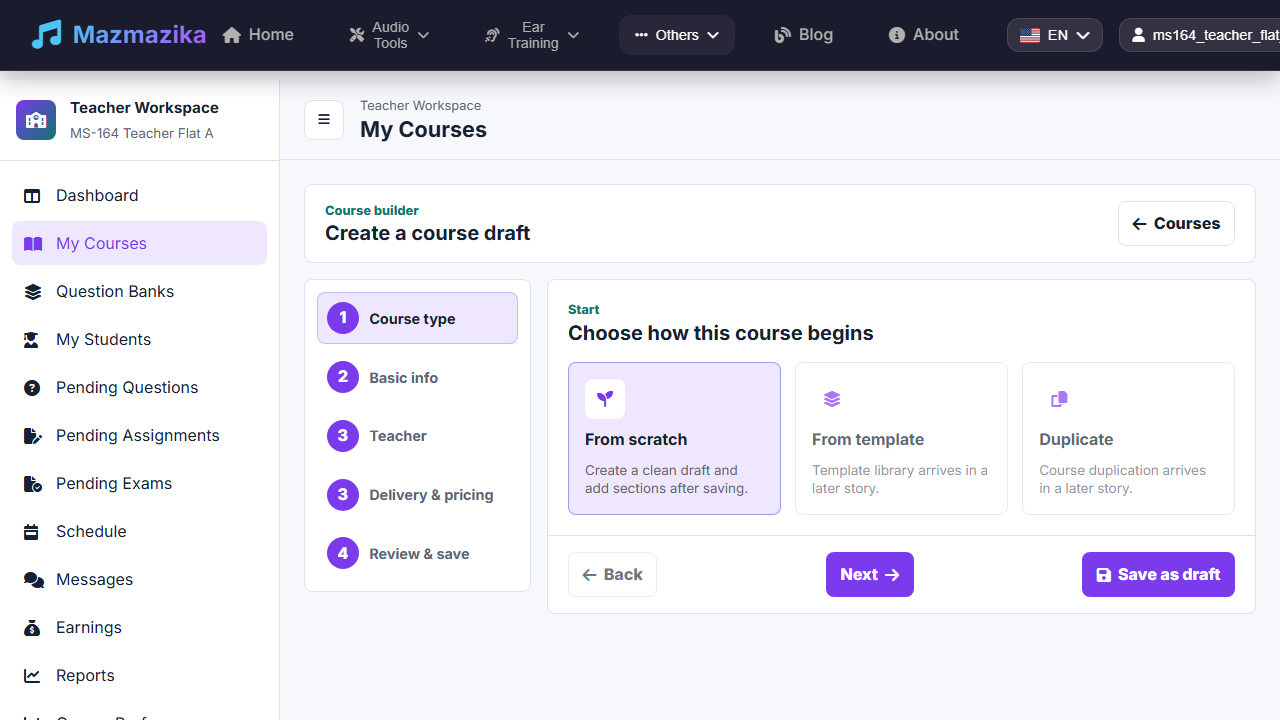
Open the course builder to create a new course draft. A short wizard walks you through it: choose how the course begins (currently From scratch), then fill in Basic info (title, description, category, level, language, cover image), assign the responsible Teacher, set Delivery & pricing (free or paid), and review & save. You can keep it as a draft and build it up before publishing.
Building your course
- Sections & lessons — organise content into chapters, then add lessons: video, audio, PDF, or text. Reorder sections and lessons any time.
- Materials — attach downloadable files at the course level (a full PDF book) or to a specific lesson (that song's sheet music, a MIDI file, a backing track).
- Replace files — swap a video or PDF without losing the lesson or students' progress.
Assessments, question banks & rubrics
Add quizzes (auto-graded), assignments (audio/video/PDF/notation submissions you review), and exams. Reuse questions across courses with Question Banks, and keep grading consistent with rubric templates. For each assignment you can set instructions, a deadline, and a rubric, then grade submissions, leave written feedback, attach correction files, and request a resubmission.
Publishing a course
- Independent teacher: click Publish and students can find your course right away.
- Organization teacher: Submit for review; your organization checks it against a quality checklist and publishes it once approved.
Students, questions & communication
See who's enrolled and each student's progress under My Students. The Pending Questions inbox collects learner questions across all your courses: filter by Unanswered, High priority, Assigned to me, or Escalated (and by course or lesson), answer inline, mark a question resolved, or promote a good answer to a reusable FAQ. Reply to learners in Messages, and send announcements to everyone in a course.
Reports & earnings
Reports and Course Performance show enrolments, completion rates, where students drop off, quiz performance, and your grading backlog. If you sell courses, Earnings shows your income and enrolment trends.
For Organizations
This section is for music schools, academies, and institutions managing many teachers and students.
Your Organization Workspace
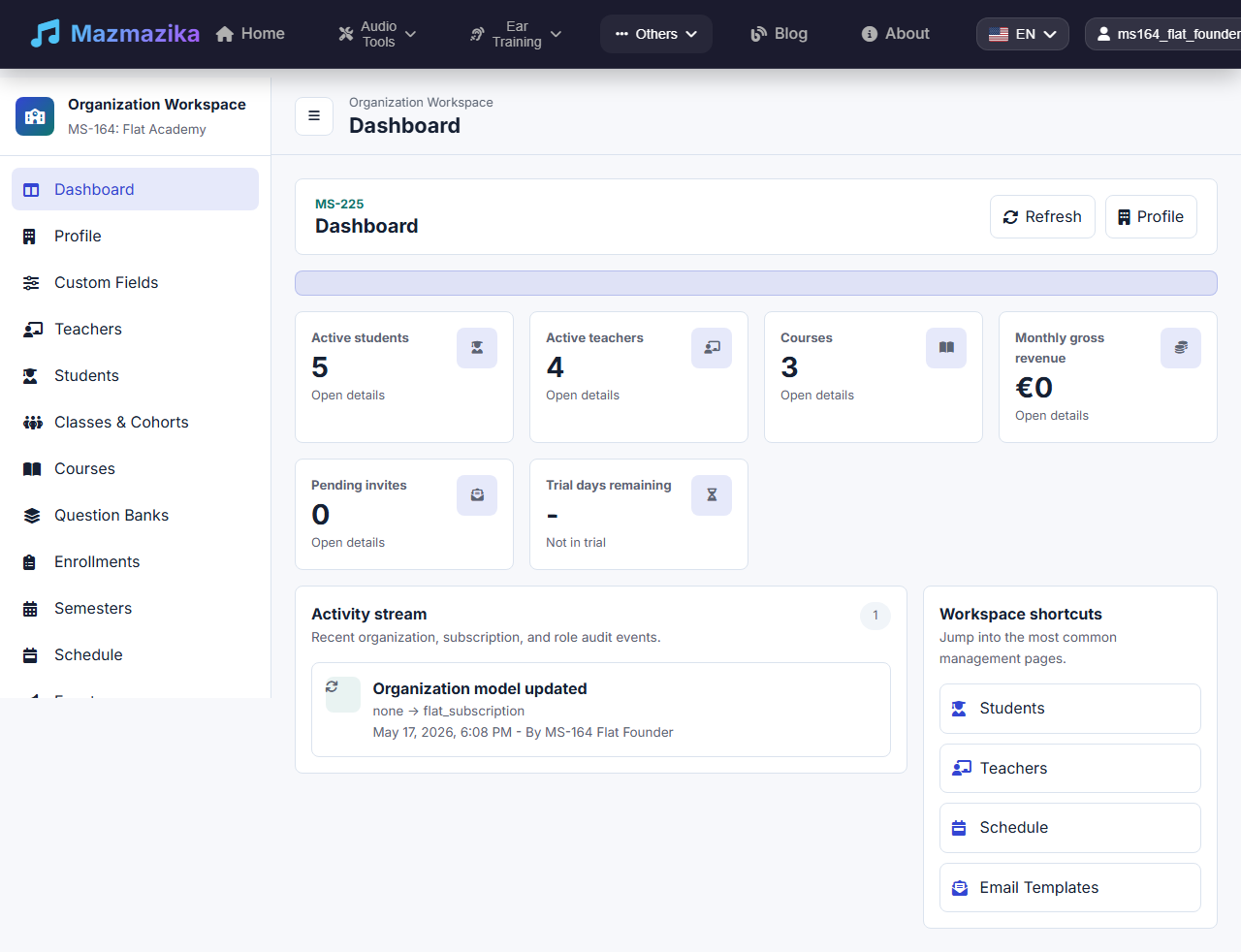
The organization dashboard is a control centre showing key figures at a glance — active students, active teachers, courses, monthly revenue, pending invites, and trial status — plus a recent activity stream and quick shortcuts to the pages you use most. A left-hand menu gives you Profile, Custom Fields, Teachers, Students, Classes & Cohorts, Courses, Question Banks, Enrollments, Semesters, Schedule, Events, and more.
Setting up your organization
Create your institution's profile (name, logo, description, contact, country, language, timezone). You can also define custom enrollment fields, email templates, branding, and default course settings.
Managing people
- Teachers — invite teachers by email, see their courses, and manage their membership. Removing a teacher keeps their courses and student records; only their link to your organization ends.
- Students — add students, organise them into classes & cohorts, and assign them to courses (individually or in bulk).
- Enrollments, semesters, schedule & events — manage who is enrolled in what, define academic terms, and schedule sessions and events.
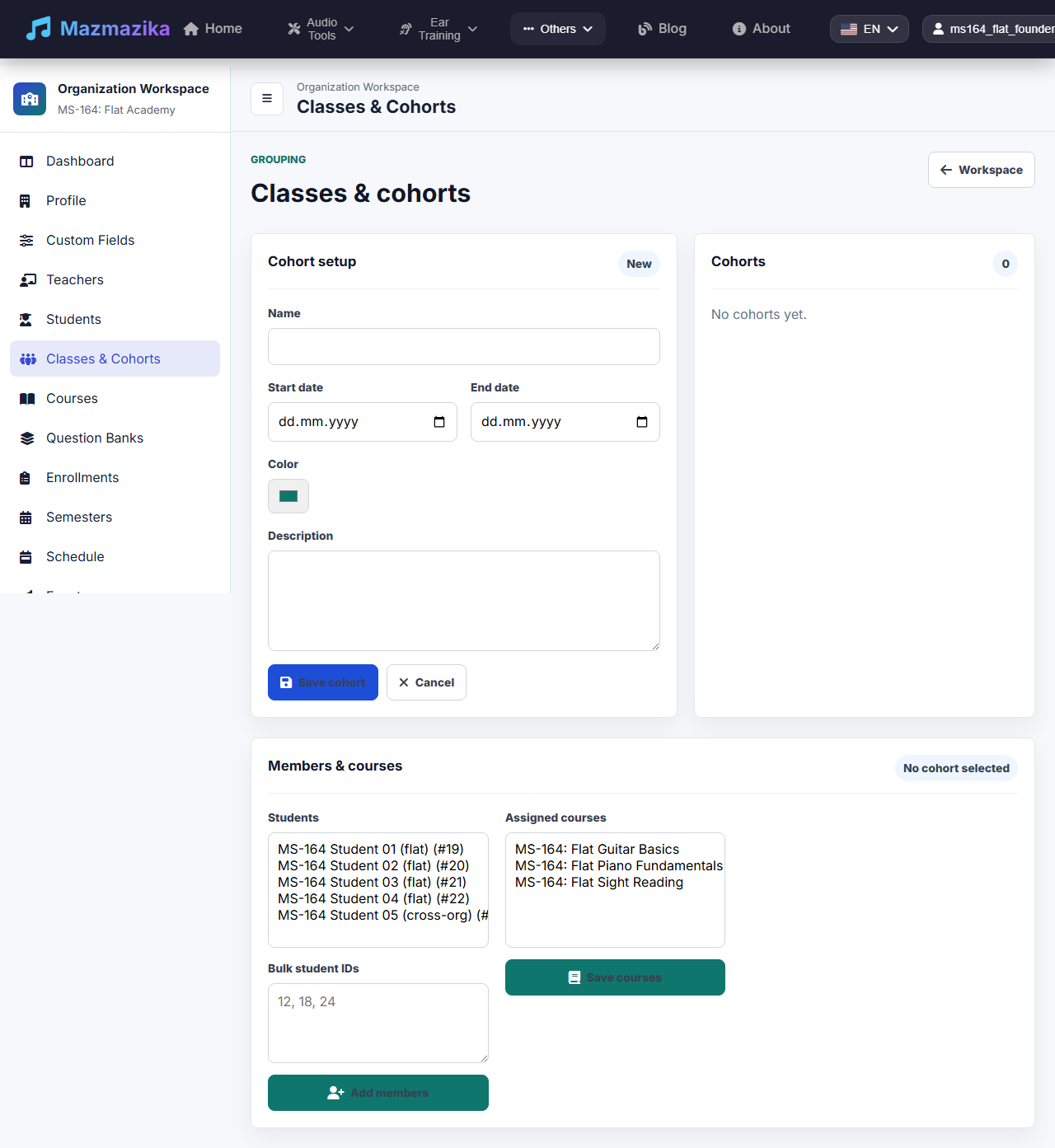
In Classes & Cohorts you create a cohort (name, dates, colour), add students to it (individually or by bulk IDs), and assign courses to the whole cohort at once.
Courses & the approval workflow
Courses in your organization always have one responsible teacher and go through a publish-approval workflow:
- A teacher builds a course and submits it for review.
- You check it against your approval checklist (quality, rights/licensing, pricing, language, prerequisites, certificate eligibility).
- You approve, reject with comments, or send it back.
- Once approved, you publish it and students can enrol.
Every approval action is recorded in an audit log, so you always know who approved what, when, and why.
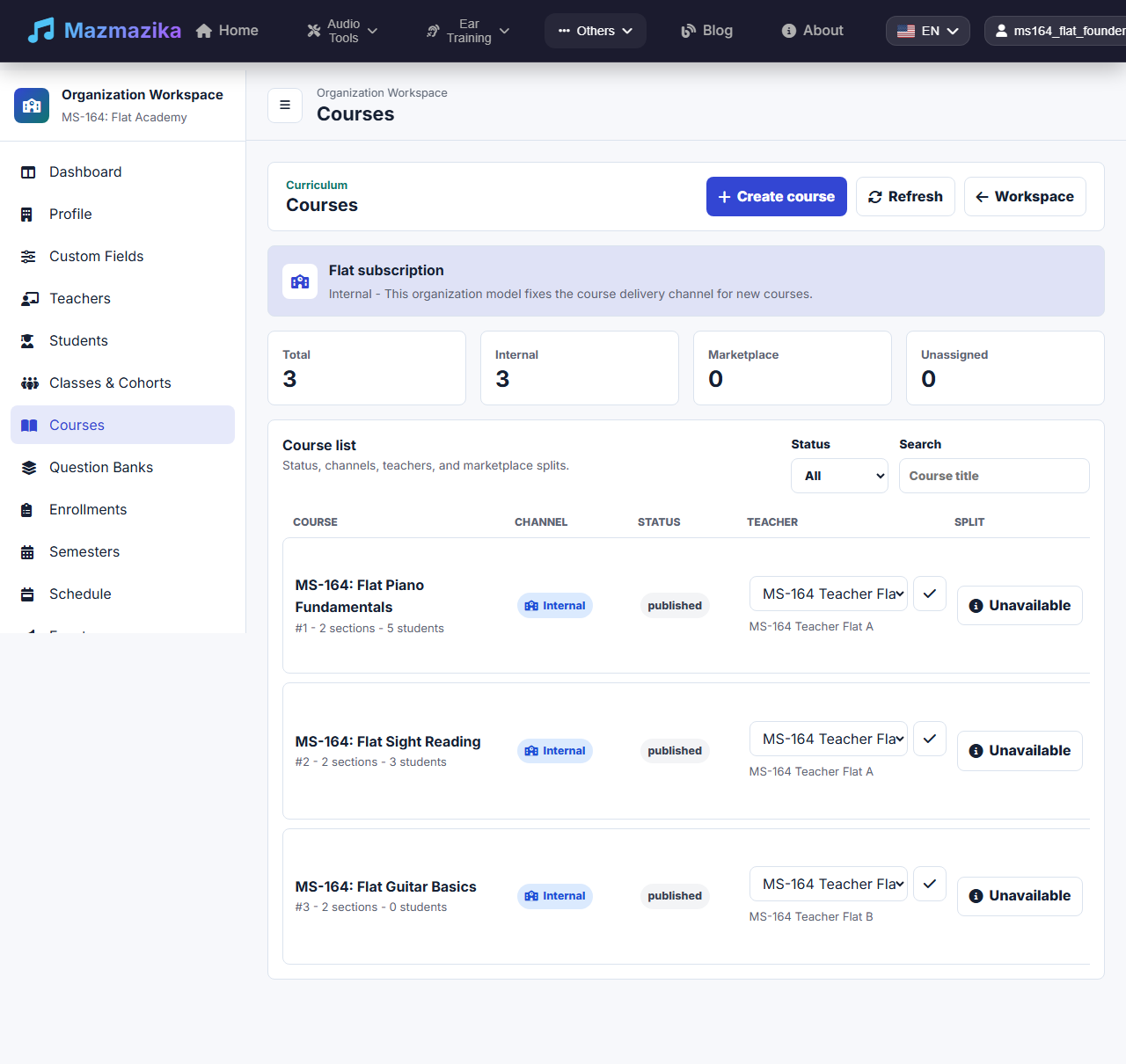
The Courses page lists every course the organization owns with its delivery channel (internal/marketplace), status, responsible teacher, and revenue split, plus quick counts by channel — and a Create course button.
Reports
Detailed reports cover course performance, teacher performance, student progress (including at-risk and inactive learners), enrolments, assignments/grading, certificates, and revenue. Reports can be viewed on screen and exported as PDF for meetings or compliance.
Subscription & quotas
Your plan controls how many teachers, students/seats, and courses you can have, how much storage you get, and which premium features are available. When you approach a limit, the platform warns you and explains how to fix it — it never fails silently.
For Platform Admins
A small group of trusted Mazmazika operators manage the whole system. The platform admin dashboard gives a single view across all organizations — totals for organizations, teachers, students, courses, and enrolments; revenue and payment health; course-quality and engagement signals; music-tool usage; storage; and security/support signals — with the ability to drill into any organization, course, user, or transaction, and to review audit logs.
Quick reference
Students
| I want to… | What to do |
|---|---|
| Find a course | Open Browse Courses and search/filter |
| Start a free course | Click Enroll Free / Start Course |
| Buy a paid course | Click Buy Now and complete payment |
| Continue where I left off | Use your enrolled course's Start / Continue on the dashboard |
| Submit homework | Open the assignment in the course and upload your file |
| Ask the teacher | Use the lesson's Q&A area |
| Get my certificate | Finish all required lessons and quizzes — it's issued automatically |
Teachers
| I want to… | What to do |
|---|---|
| Create a course | Open the course builder and follow the wizard |
| Add a lesson | Open the course, choose a section, add a video/audio/PDF/text lesson |
| Sell my course | Set a price under Delivery & pricing |
| Grade an assignment | Open Pending Assignments and review the submission |
| Answer a question | Open Pending Questions and reply |
| Publish | Publish (independent) or Submit for review (organization) |
Organizations
| I want to… | What to do |
|---|---|
| Add a teacher | Open Teachers → Add and enter their email |
| Approve a course | Open the course in review, complete the checklist, click Approve |
| Group students | Use Classes & Cohorts |
| See how the school is doing | Open Reports (export as PDF) |
| Check my limits | Open Quotas / Subscription |
Privacy & trust
- Your data is yours. Students own their progress, teachers own their courses, organizations own their data.
- Paid access requires confirmed payment. No one reaches a paid course without paying.
- Organizations see only their own data — no cross-organization leakage.
- Sensitive actions are audit-logged — approvals, teacher changes, certificate issuance, and payments.
Getting help
- Check the course Q&A — your question may already be answered.
- Ask your teacher (students) or your organization admin (teachers).
- Contact Mazmazika support for platform issues.
What's still rolling out
The e-learning platform is growing quickly. Some areas — including richer cohort and live-session tools, course templates and duplication, and organization branding/white-label — are being finalised and will appear through in-platform announcements as they launch. The student learning experience, the teacher workspace, course building, assessments, and the organization workspace described above are available now.