Metronome & Tuner — User Manual
What is the Metronome & Tuner?
The Mazmazika Metronome & Tuner is a free, browser-based practice tool that pairs a studio-grade metronome with an instrument tuner in one place. The metronome goes well beyond a simple click: an adjustable tempo on a big dial, any time signature, per-beat sounds and accents, subdivisions, ready-made world-rhythm presets (pop, Latin, flamenco, Middle-Eastern), a training mode that steps the tempo through a sequence, hands-free voice control, and savable presets. Switch to the Tuner to check any string or note against a reference pitch. No install — it runs in your browser.
Quick start
- Open Audio Tools → Metronome (or the sidebar).
- Set the tempo on the dial and the time signature in the dock.
- Tap the dial to start. Tap it again to stop.
The first time, click anywhere on the page so the browser allows audio.
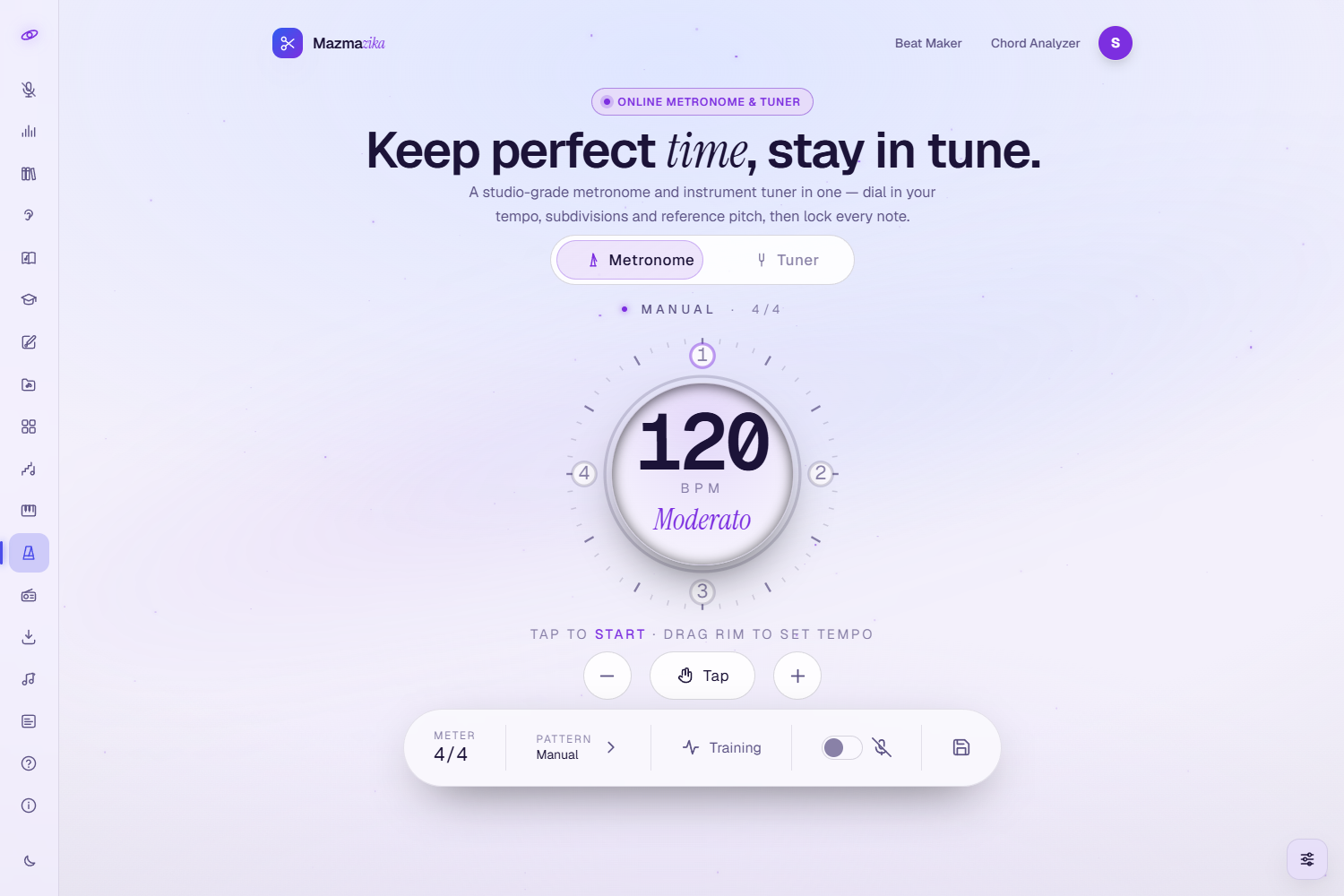
The tempo dial
- Range 20–300 BPM, with the Italian tempo name shown (Largo, Andante, Moderato, Allegro, Presto…).
- Drag the dial's rim to set the tempo, or scroll over it.
- Use the − / + buttons to nudge by 1 BPM.
- Tap tempo — click Tap a few times in time with the music and the BPM is set from the rhythm of your taps.
- Tap the centre of the dial to start or stop.
Meter (time signature)
Open Meter in the dock to set the time signature:
- Beats per measure — any value from 1 to 15.
- Note value — 1, 2, 4, 8 or 16 (the bottom number).
- Start on beat — choose which beat the count begins on. Useful for rhythms that don't start on "1" (e.g. flamenco bulerías conventionally start later in the cycle).
Per-beat sounds & accents
Every beat is its own instrument. The beats appear as dots around the dial — click a beat to open Configure Beat, where you set that beat's sound, subdivision, accent, pitch and volume. Make beat 1 a strong accent and the others softer, or build a whole groove across the bar.
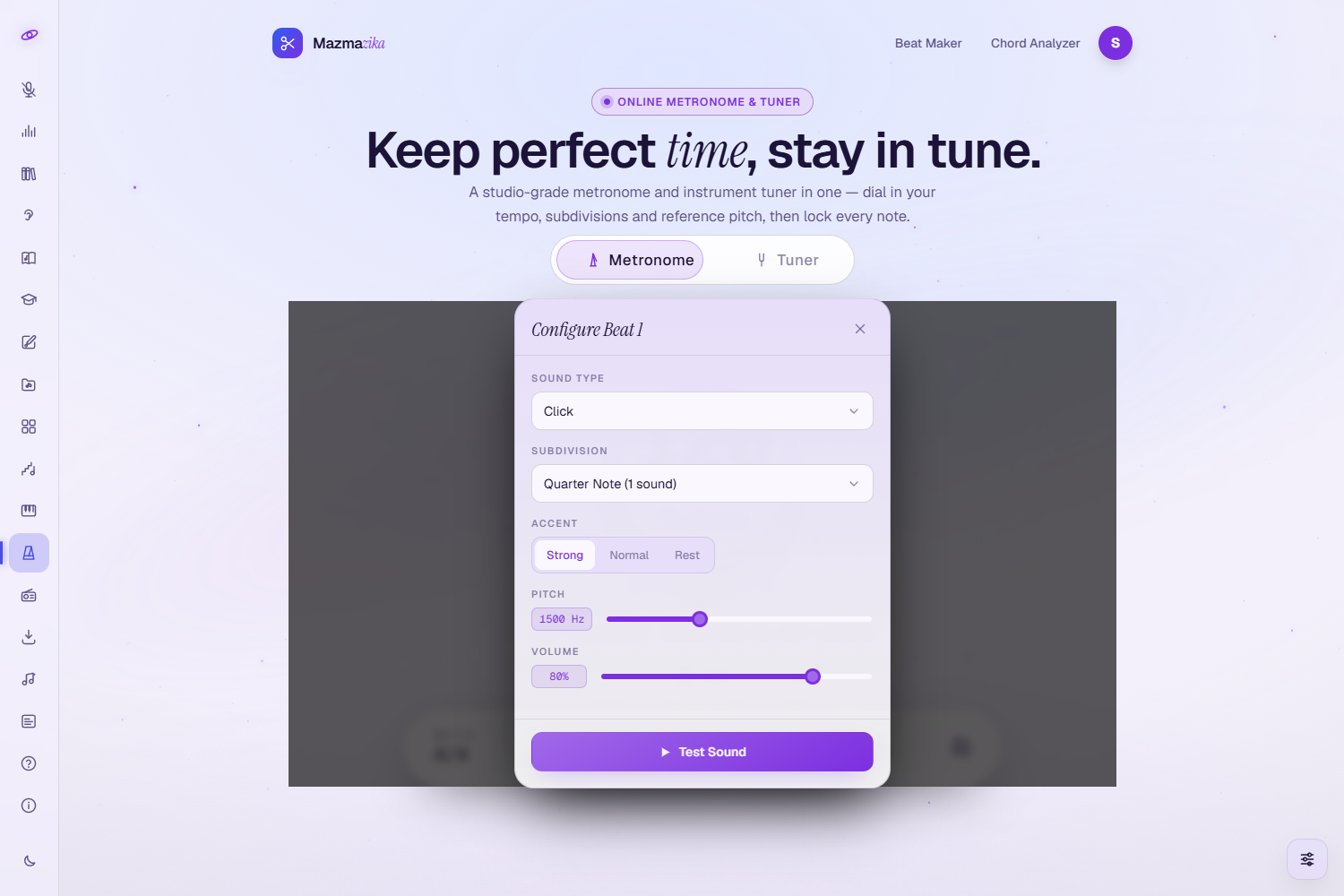
Sound bank (7 voices)
Click, Woodblock, Cowbell, Clave, Rim / Side-stick, Hi-hat and Beep — all synthesised live. For each beat you also set Pitch and Volume, and can press Test Sound to preview.
Accent
Set each beat to Strong (a loud accent), Normal, or Rest (silent — leave a gap to practise keeping time).
Subdivisions (per beat)
Split any beat into smaller notes: Quarter (1 sound), Eighth Notes (2), Triplet (3) or Sixteenth Notes (4) — ideal for swing, shuffle and syncopation practice.
Rhythm patterns
Open Pattern in the dock to load a ready-made groove — the metronome sets the beats, accents, subdivisions and sounds for you.
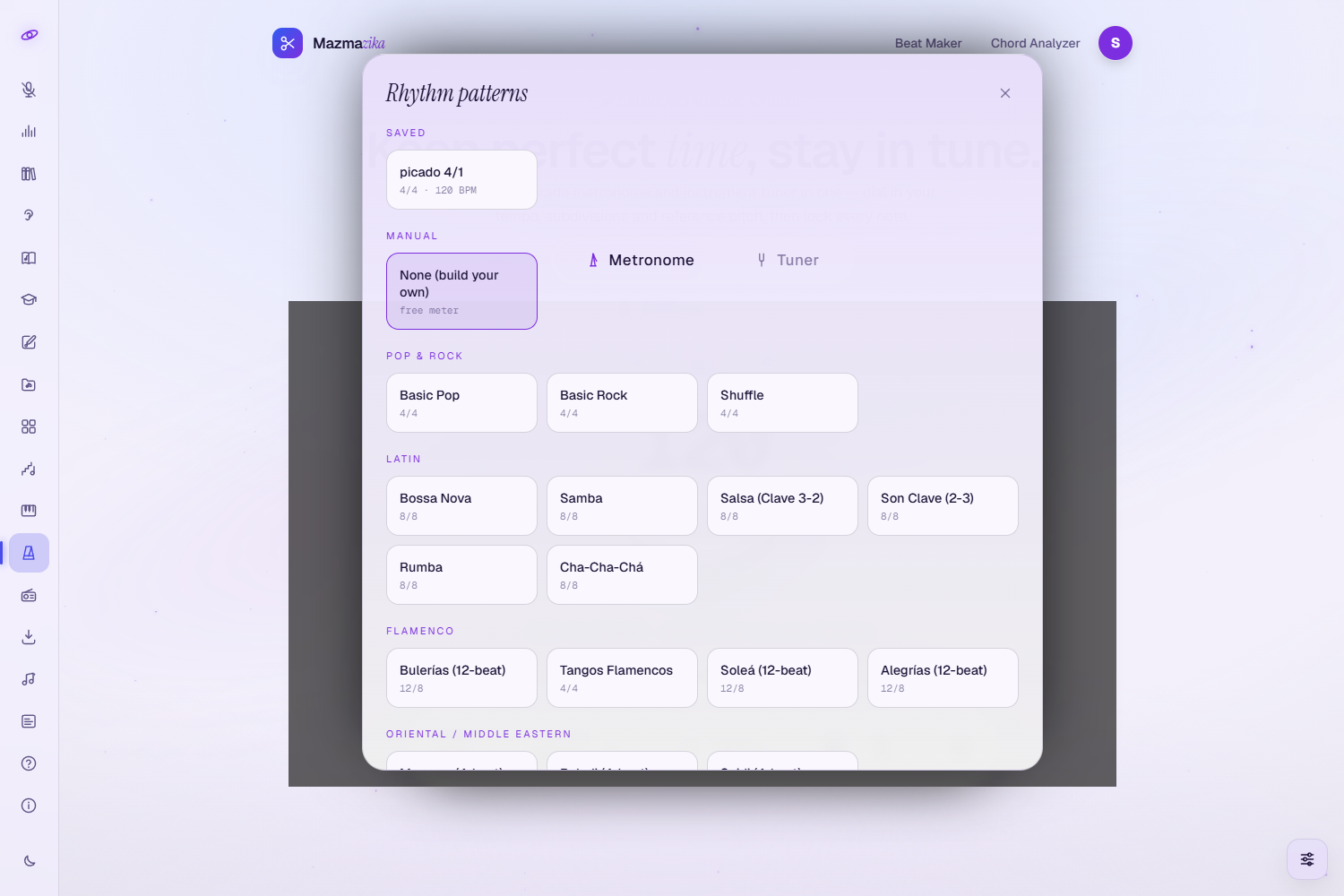
| Family | Presets |
|---|---|
| Pop & Rock | Basic Pop, Basic Rock, Shuffle |
| Latin | Bossa Nova, Samba, Salsa (Clave 3-2), Son Clave (2-3), Rumba, Cha-Cha-Chá |
| Flamenco | Bulerías (12-beat), Tangos Flamencos, Soleá (12-beat), Alegrías (12-beat) |
| Oriental / Middle-Eastern | Maqsum, Baladi, Saidi, Ayoub, Malfuf |
Choose None (build your own) for a blank, free-meter pattern. Your own Saved presets appear at the top of this sheet.
Training mode (tempo trainer)
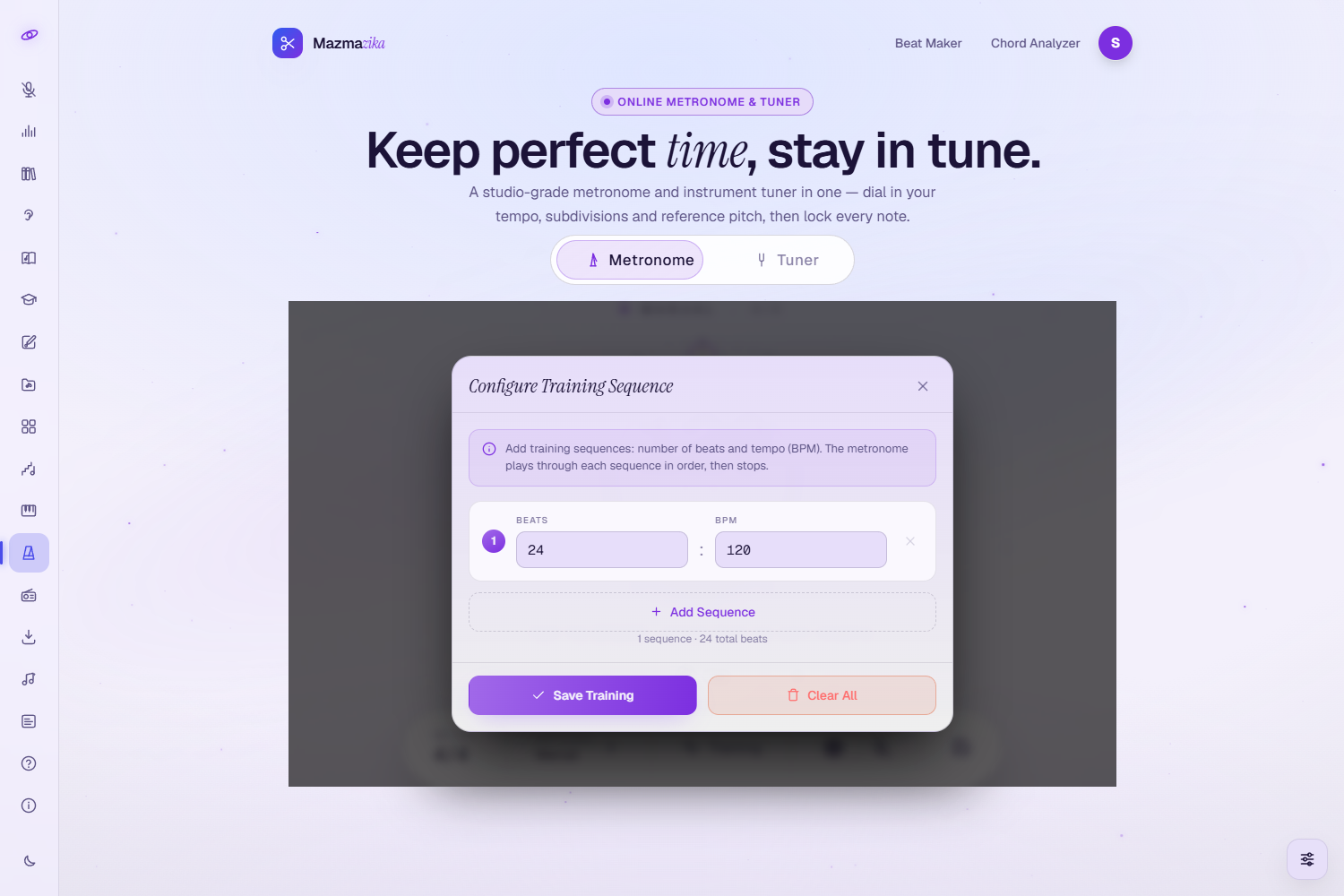
Open Training in the dock to build a sequence of steps — each step is a number of beats at a chosen BPM. The metronome plays through the steps in order and then stops, so you can gradually speed up (or slow down) and groove at progressively harder tempos. Use Add Sequence to add steps and Clear All to start over; a progress strip shows the current step and tempo while it plays.
Voice control
Flip the voice (microphone) toggle in the dock (Chrome or Edge; allow microphone access) and speak commands:
| Say… | Does |
|---|---|
| "start" / "play" / "go" | start the metronome |
| "stop" / "pause" | stop |
| "faster" / "quicker" | +5 BPM |
| "slower" | −5 BPM |
| a number (e.g. "tempo 120") | set that BPM |
Saving your setup
Your current settings are remembered in your browser between visits. When you're logged in, press the save button in the dock to store a named preset to your account — it then appears in the Saved group of the Rhythm patterns sheet, ready to reload any time.
The Tuner
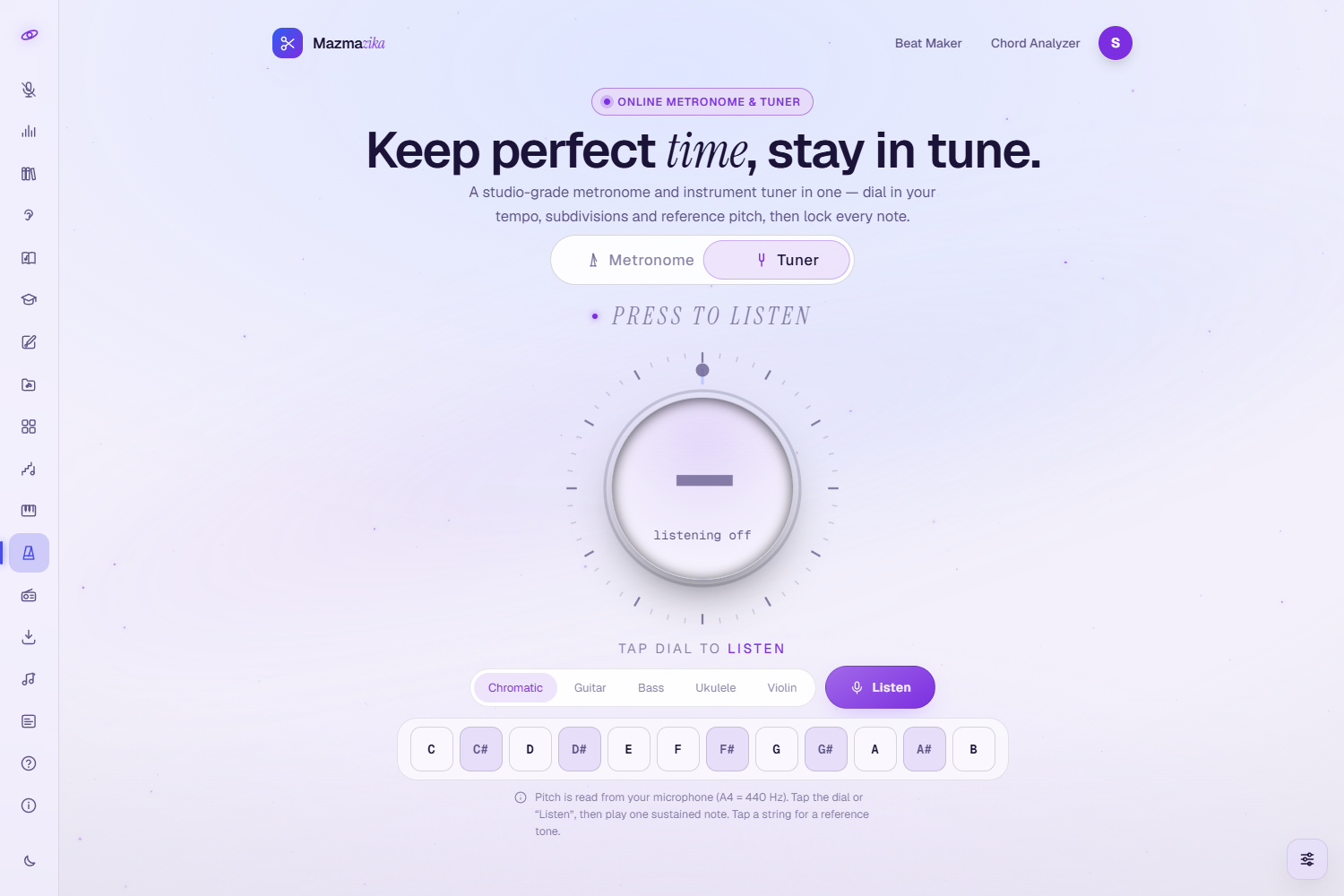
Switch to the Tuner tab to tune your instrument. Pick your instrument (guitar, bass, ukulele, violin and more), then tap the dial or press Listen and allow microphone access. Play a note and the tuner shows the detected pitch and how many cents sharp or flat you are — "tune up", "tune down", or in tune when you're spot on. You can also tap any string to hear its reference tone and match it by ear.
Tips
- Build a groove: set beat 1 to a strong accent and give off-beats a Hi-hat for a real drum feel.
- Practise timing: set some beats to Rest so you have to keep time through the gaps.
- Speed up safely: use Training mode to step the tempo up a few BPM at a time.
- Feel the cycle: load a Flamenco or Latin preset and watch the accented beats light up around the dial.
Troubleshooting
- No sound? Click anywhere on the page once (browsers only start audio after you interact), then check the per-beat Volume and your device volume.
- Voice control does nothing? Use Chrome or Edge and allow the microphone permission; it listens in English.
- The tuner won't listen? It needs microphone access — allow it when prompted.
- Save asks me to log in. Saving to your account needs an account; without one, your settings are still remembered in this browser.
- A preset changed my time signature. That's expected — presets set the meter and accents; choose None (build your own) to go back to your own pattern.
Related tools
Pair the metronome with Ear Training and the Virtual Piano for practice, build a full groove in the Beat Maker, or use the Chord Analyzer to learn a song's chords before playing along.