Virtual Piano (Workstation) — User Manual
What is the Virtual Piano?
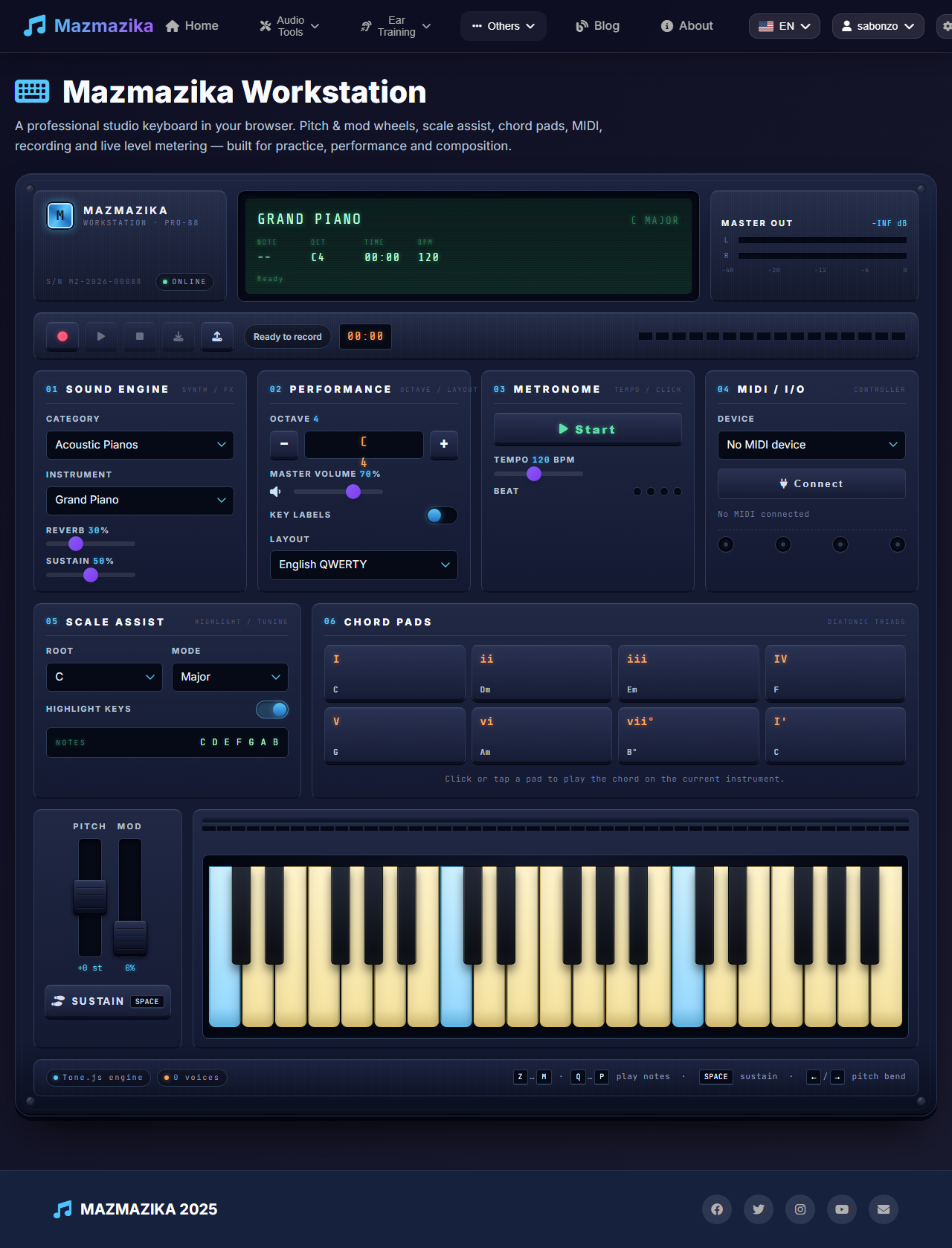
The Mazmazika Workstation is a full virtual piano studio that runs right in your browser — no install needed. Beyond a simple keyboard, it gives you a choice of instruments, scale highlighting, chord pads, pitch and modulation wheels, a metronome, a recorder, and MIDI keyboard support. It's built for practice, performance, and quick composition.
Three ways to play
- Mouse or touch — click or tap the on-screen keys.
- Your computer keyboard — use the letter and number keys to play (see below).
- A MIDI keyboard — connect a real MIDI controller for the full feel (Chrome or Edge).
The console at a glance
Everything lives on one panel. At the top is the display (LCD) showing the current instrument, scale, last note, octave, recording time, and tempo, plus level meters. Below that is the transport bar (recording), then the module rack — Sound Engine, Performance, Metronome, and MIDI/IO — followed by Scale Assist and Chord Pads, and finally the keyboard with its pitch/mod wheels and sustain pedal.
Playing with your computer keyboard
You can play without a mouse. The two letter rows act like the two rows of a piano:
- Z X C V B N M — white keys (lower octave); the keys above them (S D … G H J) are the black keys.
- Q W E R T Y U … — white keys (upper octave); the number row gives the black keys above.
- SPACE — hold the sustain pedal.
- ← / → — bend the pitch down or up.
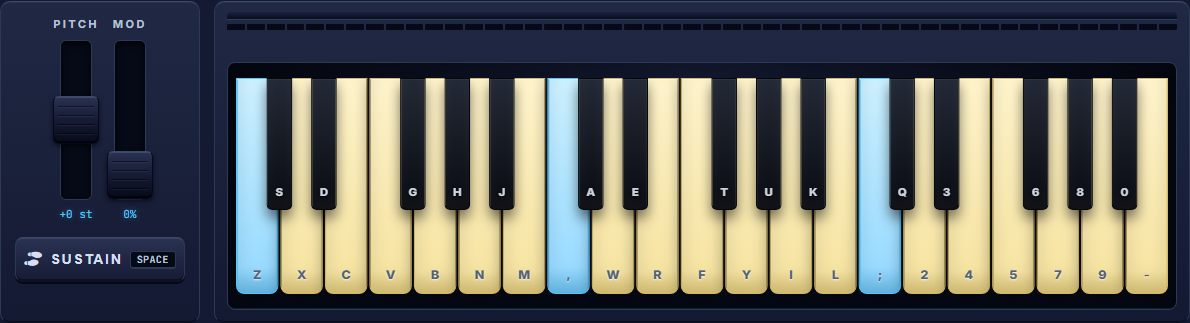
Turn on Key labels (in the Performance module) to see these letters printed on the keys, as shown above.
Keyboard layout: English vs German
In Performance → Layout, pick English QWERTY or German QWERTZ so the printed labels match your physical laptop keyboard. German mode swaps the Y/Z positions and labels the key next to L as Ö. The keys play the same notes either way — only the labels change.
Choosing your sound (Sound Engine)
- Category — Acoustic Pianos, Electric Pianos, Organs, or Synthesizers.
- Instrument — pick a specific sound within the category.
- Reverb — add space/room ambience.
- Sustain — set how long notes ring out after you release them.
Performance controls
- Octave − / + — shift the keyboard up or down (the readout shows the base note, e.g. C4).
- Master Volume — overall loudness.
- Key labels — show or hide the letters/notes on the keys.
- Layout — English QWERTY or German QWERTZ (see above).
Scale Assist
Scale Assist highlights the notes of a chosen scale on the keyboard so you can stay "in key" while you play.
- Root — the starting note (C, C#, D …).
- Mode — Major, Natural/Harmonic/Melodic Minor, the modes (Dorian, Phrygian, Lydian, Mixolydian, Locrian), Pentatonic Major/Minor, Blues, or Chromatic.
- Highlight keys — turn the on-keyboard highlighting on or off.
The current scale's notes are listed under the controls, and the highlighted keys update instantly when you change the root or mode.
Chord Pads
The chord pads play the seven diatonic chords of the selected scale, labelled by degree — I, ii, iii, IV, V, vi, vii°, plus the octave I'. Click or tap a pad to play that chord on the current instrument. Change the Scale Assist root/mode and the pads follow automatically — a fast way to sketch a progression.
Pitch & Mod wheels and the Sustain pedal
- Pitch wheel — bend notes up or down (also the
←/→keys). - Mod wheel — add modulation/expression depth.
- Sustain pedal — click and hold the pedal button, or hold SPACE, to keep notes ringing.
Metronome
Use the Metronome module to practise in time: press Start to begin the click, drag Tempo to set the BPM (40–220), and watch the beat indicator pulse on each beat.
Recording Studio
The transport bar at the top lets you capture and reuse what you play:
- Record (●) — start capturing your performance.
- Play (▶) — play your recording back.
- Stop (■) — stop recording or playback.
- Download (↓) — save the take as a Mazmazika
.jsonrecording file (enabled once you've recorded something). - Import (↑) — load a previously downloaded
.jsonrecording to play it back again.
The recording stores your notes, timing, instrument, octave, and layout — so it plays back exactly as performed.
Using a MIDI keyboard
For the most natural feel, connect a physical MIDI keyboard:
- Plug the keyboard into your computer.
- Open the Virtual Piano in Chrome or Edge (these support Web MIDI).
- In the MIDI / I/O module, click Connect and allow the browser's MIDI permission prompt.
- Choose your device from the Device list.
Your keys then play across the full range, and your hardware sustain pedal works too. The keys visible on screen highlight when you play notes within the current range.
The display & level meters
The LCD shows the active instrument, the current scale, the last note played, the octave, the recording time, the tempo, and a status line. The Master Out meters show the left/right output level so you can see how loud you're playing.
Tips
- Turn on Key labels while you're learning the computer-keyboard mapping.
- Use Scale Assist to improvise confidently — highlighted keys keep you in key.
- Sketch with Chord Pads, then play a melody over them on the keyboard.
- Record short ideas and download them so you don't lose them.
- Practise with the metronome to build steady timing.
Troubleshooting
- No sound? Click or tap the page once first — browsers only start audio after you interact. Then check Master Volume and your device volume.
- MIDI keyboard not detected? Use Chrome or Edge, click Connect, and allow the MIDI permission. Other browsers may not support Web MIDI.
- Key labels don't match my keyboard. Switch the Layout between English QWERTY and German QWERTZ.
- Download didn't work. Some embedded/in-app browsers block downloads — try a normal Chrome or Edge window.
Related tools
Training your ear? Pair the piano with Ear Training. Want to write music down? The Notes Editor has its own on-screen piano for note entry.