Scales & Chords — User Manual
What is Scales & Chords?
The Mazmazika Scales & Chords visualizer lets you see and hear any scale or chord. Pick a root note and a type, and the tool engraves it on a real musical staff, lists the note names, and plays it back on the instrument of your choice. It's a fast way to learn how music is built — perfect for studying theory, checking a fingering, or finding the notes of a scale or chord. Everything runs in your browser; no account needed.
The two tabs
Open Scales & Chords from the sidebar. At the top is a toggle between two modes:
- Scales — build and hear any scale or mode.
- Chords — build and hear any chord, in any inversion.
Scales
On the Scales tab, set four things and the staff updates instantly:
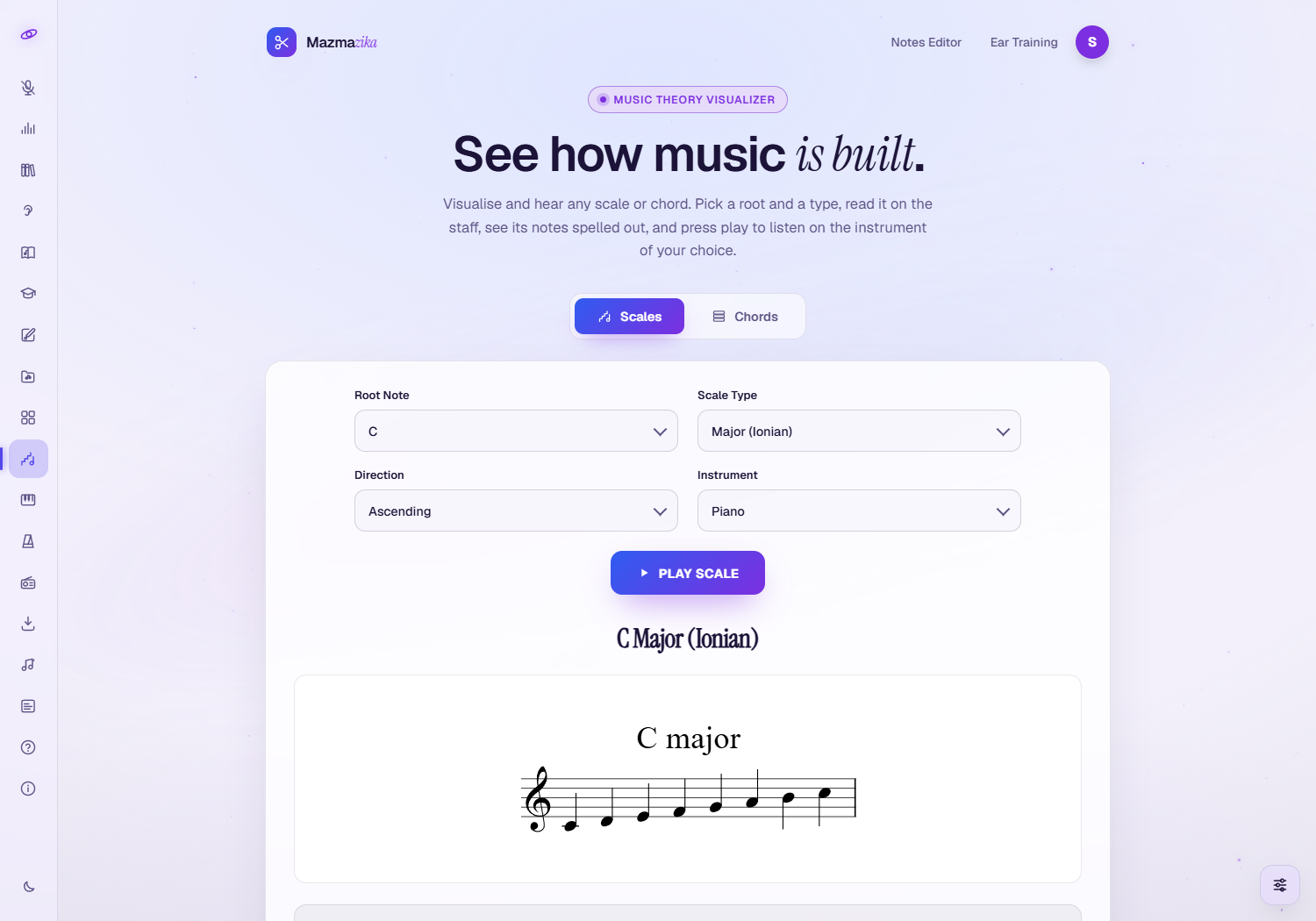
- Root Note — the note the scale starts on (C, C♯/D♭, D … B).
- Scale Type — choose from 80+ scales and modes: Major (Ionian), Natural/Harmonic/Melodic Minor, the church modes (Dorian, Phrygian, Lydian, Mixolydian, Locrian), pentatonics, blues, and many world and exotic scales.
- Direction — play it Ascending, Descending, or Both.
- Instrument — the playback sound (Piano, Electric Piano, Harpsichord, Organ, Guitar and more).
The notation panel shows the scale engraved on a staff with its proper spelling, and the Notes row lists every note in order. Press Play Scale to hear it.
Chords
The Chords tab works the same way, for chords:
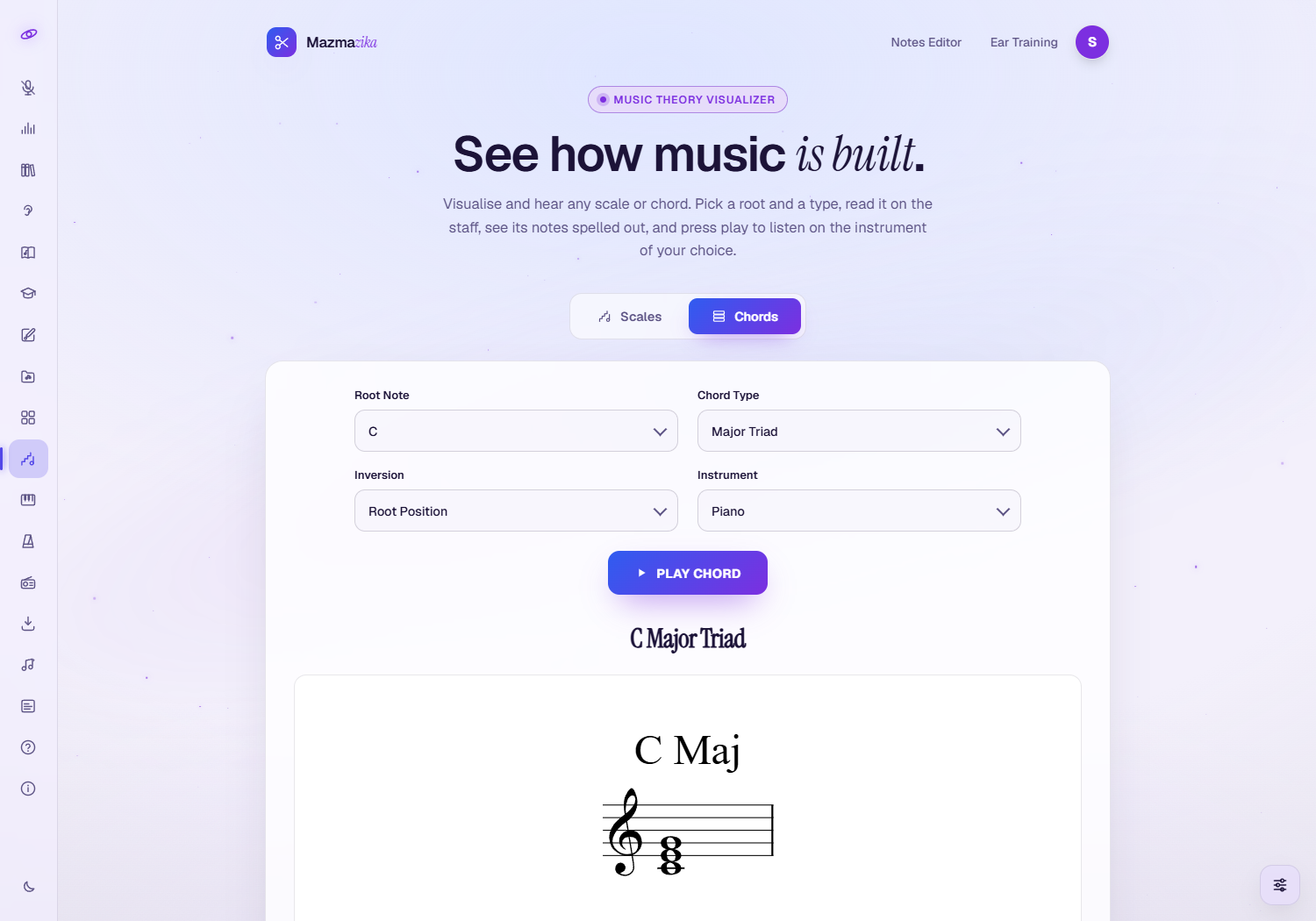
- Root Note — the note the chord is built on.
- Chord Type — 25+ types: major / minor / augmented / diminished triads, suspended (sus2, sus4), sixths, sevenths (maj7, m7, dominant 7, dim7, m7♭5), extended and altered chords.
- Inversion — Root Position, 1st Inversion or 2nd Inversion.
- Instrument — the playback sound.
Again, the chord is engraved on the staff, its notes are listed, and Play Chord sounds it out.
How to use it
- Choose Scales or Chords at the top.
- Pick a Root Note and a Type.
- For scales, set the Direction; for chords, set the Inversion.
- Read the notes on the staff and in the Notes row.
- Pick an Instrument and press Play to hear it.
The first time you press Play, click anywhere on the page so your browser allows audio.
Great for
- Learning theory — see exactly how a scale or chord is spelled on the staff.
- Practising — find the notes of any scale or chord before you play it on your instrument.
- Songwriting — try chord types and inversions and hear how they sound.
- Teaching — a clear, audible visual for lessons.
Tips
- Compare modes — keep the same root and switch Scale Type (Ionian → Dorian → Phrygian…) to hear how each mode differs.
- Hear inversions — keep a chord and step through Root → 1st → 2nd inversion to learn how the bass note changes the colour.
- Switch instruments — the same notes on guitar vs piano can help your ear connect notation to sound.
Troubleshooting
- No sound? Click anywhere on the page once (browsers only allow audio after you interact), then check your device volume.
- The staff didn't update? Give it a moment — the notation is engraved live in your browser; change any dropdown to refresh it.
Related tools
Go deeper with the Music Theory lessons, train your ear with Ear Training, try the shapes on the Virtual Piano, or find a real song's chords with the Chord Analyzer.