Vocal Remover — User Manual
What is the Vocal Remover?
The Mazmazika Vocal Remover separates any song into individual tracks (called stems) using AI-powered audio source separation. You can isolate the vocals, drums, bass, piano and other instruments — perfect for making karaoke and acapella versions, practising along with a backing track, remixing, or studying how a song is built.
Feed it a YouTube or SoundCloud link, or upload your own MP3, WAV or M4A file. Then choose how many tracks to split the song into, and whether you want an interactive mixer or a quick ZIP download.
Before you start
- You need an account. Log in (or register for free) before processing — the tool will ask you to sign in otherwise.
- Free vs. Pro. Free accounts get a limited number of songs per day. The bar at the top shows how many uses you have left, or unlimited access on a paid plan. When you hit the daily limit you can come back tomorrow or upgrade.
The Vocal Remover at a glance
Open it from the sidebar (or Audio Tools → Vocal Remover). When you're logged in there are two tabs — Remove vocals (start a new job) and My Files (your previously processed songs).
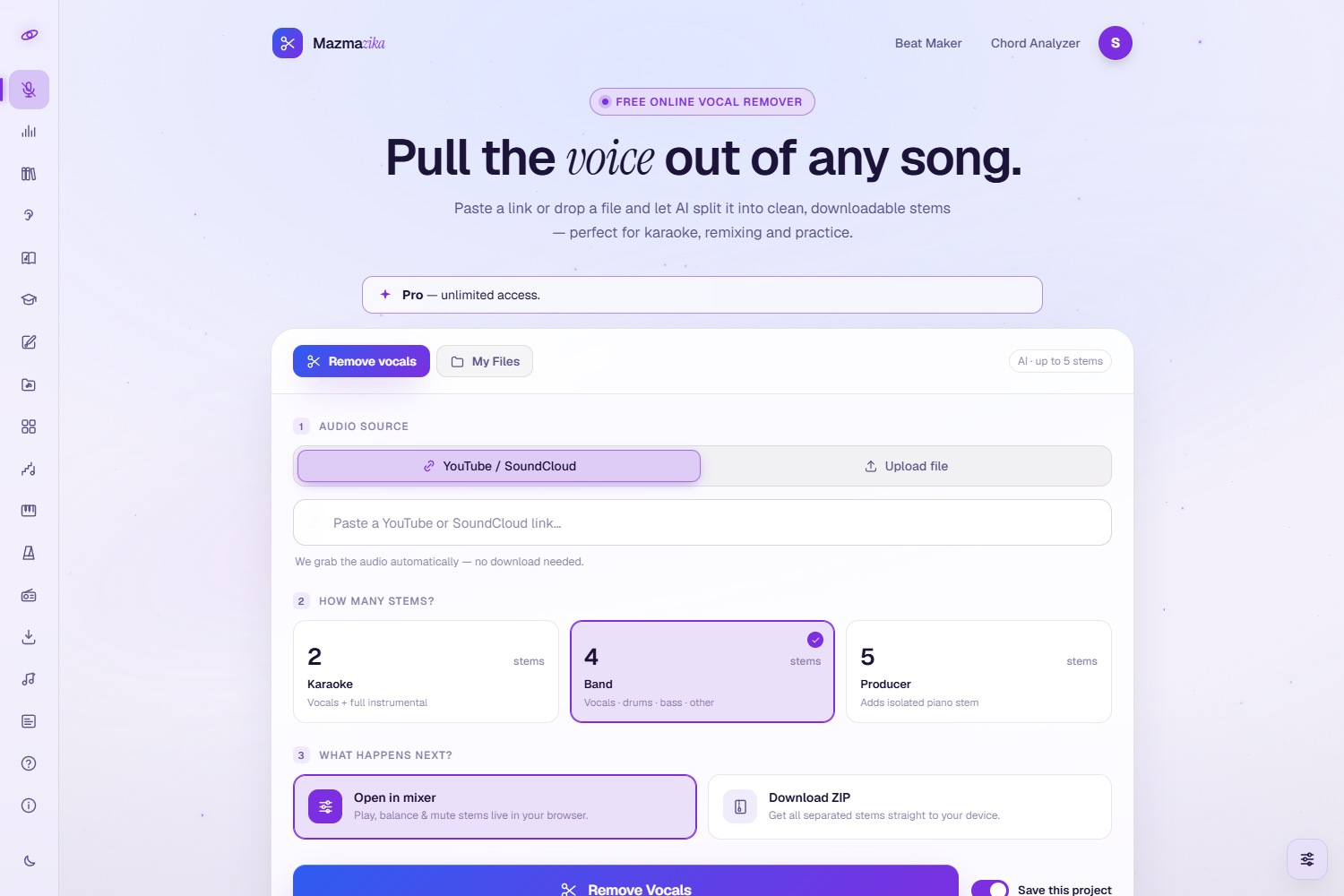
Step 1 — Choose your audio source
On the Remove vocals tab, pick your source:
- YouTube / SoundCloud — paste the song link.
- Upload file — choose an MP3, WAV or M4A from your device (up to 30 MB).
Step 2 — Choose the number of stems
How many stems? decides how many separate tracks the song is split into:
| Stems | Label | You get | Best for |
|---|---|---|---|
| 2 | Karaoke | Vocals + Accompaniment | Simple karaoke / removing the singer |
| 4 | Band | Vocals + Drums + Bass + Other | Remixing and basic instrument isolation |
| 5 | Produce | Vocals + Drums + Bass + Piano + Other | Detailed separation and practice |
If you only want to remove or keep the vocals, 2 stems is fastest. Choose 4 or 5 when you want to control individual instruments.
Step 3 — Choose what happens next
What happens next? controls how you receive the result:
- Open in mixer — opens an interactive multi-track player where you can listen, mute/solo tracks, rebalance volumes, sing or play along, and export.
- Download ZIP — skips the mixer and downloads all the separated tracks as a single ZIP file.
Leave Save this project on to keep the job in My Files for later — turn it off for a one-off.
Step 4 — Remove the vocals
Click Remove Vocals. A short progress animation appears while the AI fetches and separates the audio (typically under a minute for a normal-length song). When it finishes you land in the mixer (or your ZIP download begins).
Tip: during busy times your request may briefly wait in a queue — just leave the page open.
Using the mixer
The mixer opens right inside the page — no new tab. Each separated part becomes its own track with a waveform. The example below is a 2-stem result with Vocals and Other (accompaniment).
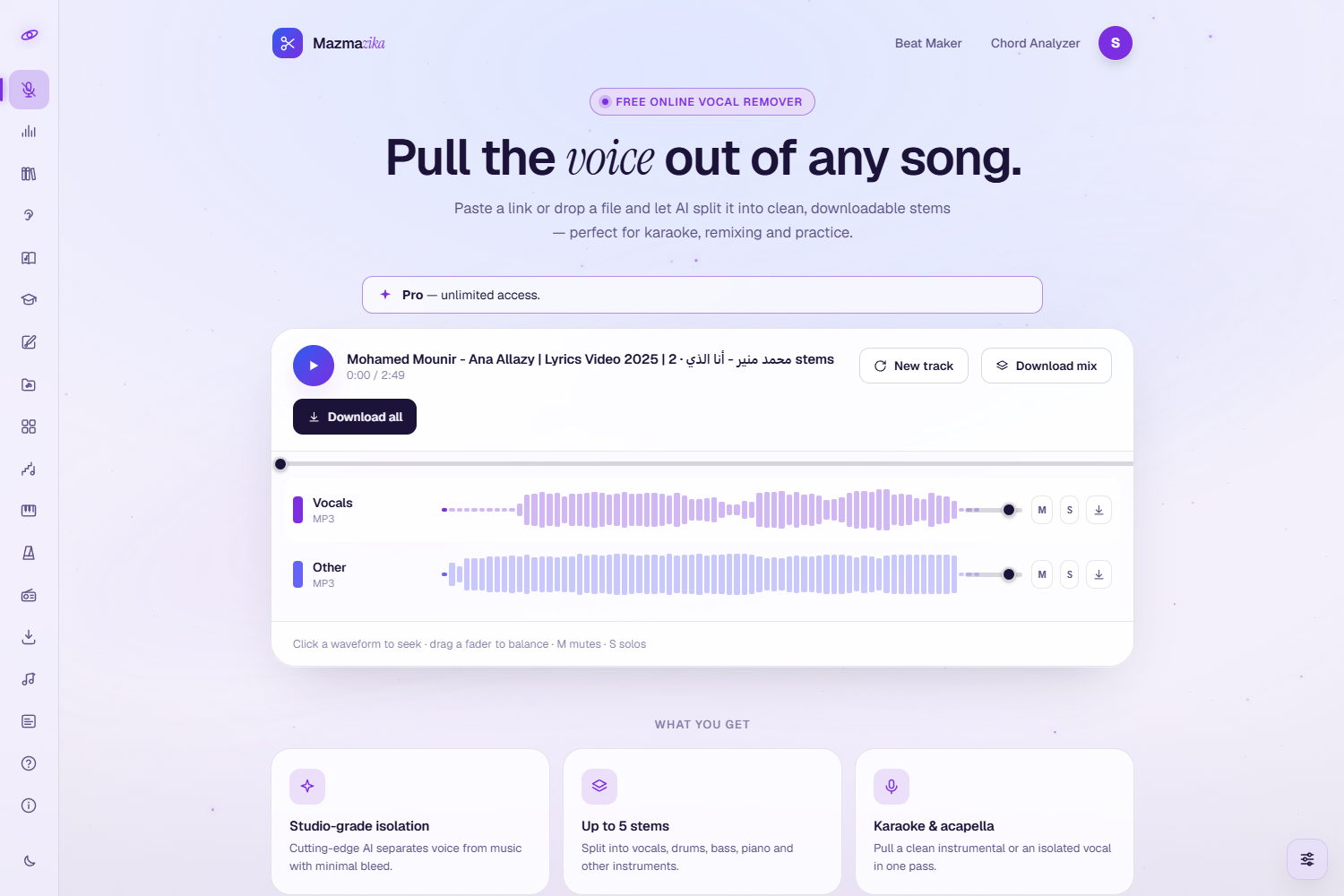
For each track you can:
- M (Mute) — silence that track in the mix.
- S (Solo) — hear only that track.
- Volume fader — set how loud the track is.
- Download — save just that single track.
- Waveform — shows the audio; click it to jump to that point.
Playback
- Play / Pause — start or pause all tracks together.
- Seek bar — drag to jump to any point in the song (or click any track's waveform).
Sing or play along (right after processing)
Straight after you process a fresh song, a recording bar appears so you can perform over the stems:
- Record — sing or play along; your take is captured on a new You track, in time with the song.
- Upload take — add your own audio file as the You track instead of recording.
- Boost (dB) — make a quiet recording louder.
- Pause on stop — when ticked, playback pauses the moment you stop recording.
- Remove take — clear your recording and start over.
Downloading your results
From the mixer you have three ways to save your work:
- Download mix — combines all the currently audible tracks (at their current volumes) into one file. Mute the tracks you don't want first — for example, mute Vocals to export a karaoke/instrumental version.
- Download all — saves every separated track as individual files in one ZIP.
- Per-track download — saves one track on its own.
Use New track to return and process another song.
Download (ZIP) mode
If you chose Download ZIP in Step 3 you skip the mixer entirely. After processing, your browser downloads a ZIP containing all the stems as high-quality MP3 files — the quickest option when you don't need to listen or rebalance first.
My Files — your saved songs
Because you're logged in, every saved job appears under the My Files tab, tagged MIXER or DIRECT for how it was processed.
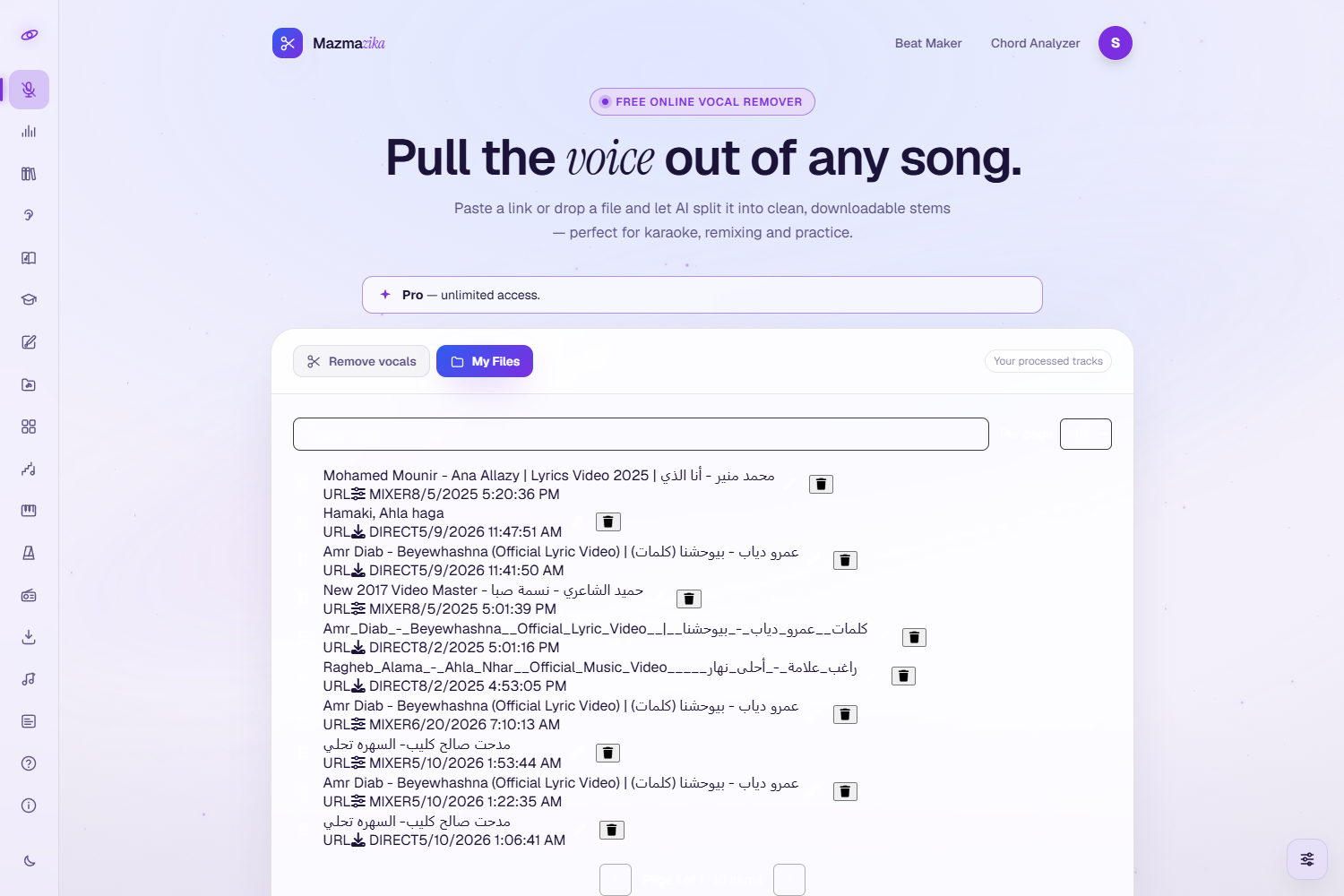
- Reopen a mixer job instantly in the mixer (no re-processing needed).
- Re-download a previous result.
- Rename your files and delete ones you no longer need.
Supported formats & limits
| Input sources | YouTube links, SoundCloud links, MP3, WAV, M4A |
| Output format | MP3 |
| Maximum song length | 10 minutes |
| Maximum upload size | 30 MB |
| Typical processing time | About 30–60 seconds for a 3-minute song |
Tips for best results
- Use a clean, high-quality source. Better input gives a cleaner separation.
- Match the stem count to your goal. 2 stems for quick karaoke; 4–5 for instrument-level control.
- Studio recordings work best. Live recordings are harder to separate than studio versions.
- Modern productions separate more cleanly than very old or low-fidelity recordings.
Troubleshooting
- "Please log in first." You need an account to process songs — sign in and try again.
- Daily limit reached. Free accounts are limited per day. Come back tomorrow or upgrade for unlimited use.
- The song won't process. Check the link is a valid YouTube/SoundCloud URL and the track is under 10 minutes, or that your file is MP3/WAV/M4A under 30 MB.
- Recording isn't available. Sing-along recording appears right after you process a fresh song; it isn't offered when you reopen an older saved job.
- Processing is taking a while. During peak times requests may queue. Keep the page open and it will continue automatically.
Related tools
Want the chords of a song? Use the Chord Analyzer. Want to build a beat from your stems? Take them into the Beat Maker.